

Tube Archivist: Your Own YouTube Archive on a Server
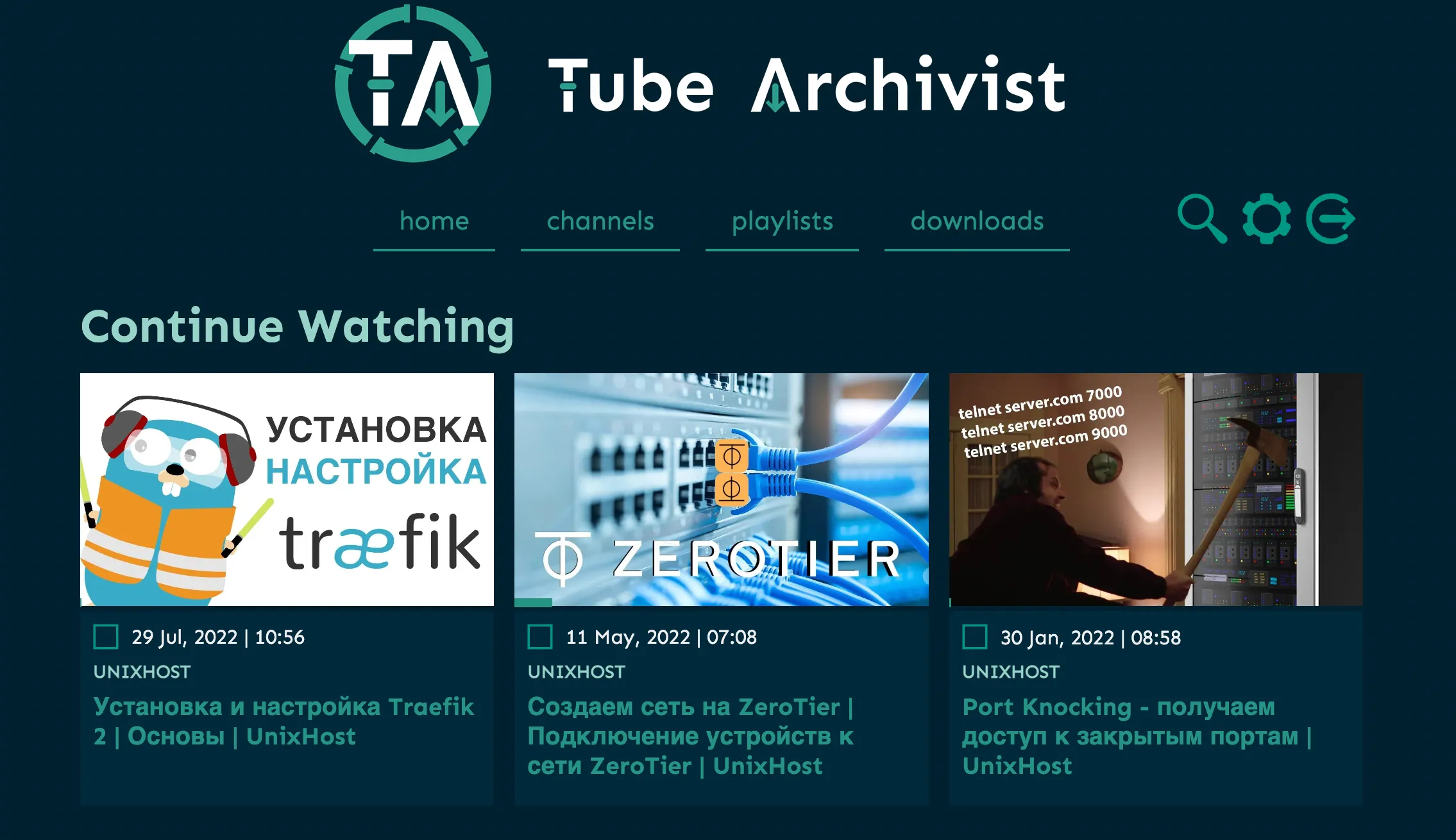
Tube Archivist is a media server for a personal YouTube archive. It downloads single videos, playlists and whole channels, keeps descriptions, thumbnails and subtitles, indexes everything for search and lets you watch in the browser without ads and without a connection to YouTube. It is useful for keeping training courses, conference recordings or videos that may disappear.
What Tube Archivist can do
- subscribe to channels and playlists and download new videos automatically;
- a download queue with a choice of quality;
- full-text search across titles, descriptions and subtitles;
- watched markers and resuming where you stopped;
- a built-in player and a browser extension that adds a video to the archive with one click;
- integration with the Jellyfin and Plex media servers.
Server requirements
Tube Archivist uses Elasticsearch, so it needs more memory than most self-hosted services.
- Memory: 4 GB or more, of which Elasticsearch needs at least 2 GB.
- CPU: 2 cores or more.
- Disk: determined by the size of the archive. An hour of 1080p video takes roughly 1–2 GB.
- Architecture: the project’s ready-made Elasticsearch image is built for amd64 only.
A VPS with a large disk suits an archive well. You need Docker and Docker Compose — see the installation guide.
Step 1. Prepare the system
Elasticsearch requires a higher memory map limit. Without this setting the container does not start:
echo 'vm.max_map_count=262144' | sudo tee /etc/sysctl.d/99-elasticsearch.conf
sudo sysctl --system
Step 2. The Compose file
mkdir -p ~/tubearchivist && cd ~/tubearchivistCreate docker-compose.yml:
services:
  tubearchivist:
    container_name: tubearchivist
    restart: unless-stopped
    image: bbilly1/tubearchivist
    ports:
      - "127.0.0.1:8000:8000"
    volumes:
      - media:/youtube
      - cache:/cache
    environment:
      - ES_URL=http://archivist-es:9200
      - REDIS_CON=redis://archivist-redis:6379
      - TA_HOST=https://tube.example.com
      - TA_USERNAME=admin
      - TA_PASSWORD=a_strong_password
      - ELASTIC_PASSWORD=another_strong_password
      - TZ=Europe/Kyiv
    depends_on:
      - archivist-es
      - archivist-redis

  archivist-redis:
    image: redis
    container_name: archivist-redis
    restart: unless-stopped
    expose:
      - "6379"
    volumes:
      - redis:/data
    depends_on:
      - archivist-es

  archivist-es:
    image: bbilly1/tubearchivist-es
    container_name: archivist-es
    restart: unless-stopped
    environment:
      - "ELASTIC_PASSWORD=another_strong_password"
      - "ES_JAVA_OPTS=-Xms1g -Xmx1g"
      - "xpack.security.enabled=true"
      - "discovery.type=single-node"
      - "path.repo=/usr/share/elasticsearch/data/snapshot"
    ulimits:
      memlock:
        soft: -1
        hard: -1
    volumes:
      - es:/usr/share/elasticsearch/data
    expose:
      - "9200"

volumes:
  media:
  cache:
  redis:
  es:
Points to note:
TA_HOST— the full address you will open the service at, including the protocol. If it does not match, logging in fails.ELASTIC_PASSWORDmust be the same in both services.TA_USERNAMEandTA_PASSWORD— the credentials for the first login.- The
mediavolume holds the downloaded videos. To keep the archive on a separate disk, replace it with a directory path, for example/mnt/storage/youtube:/youtube.
The set of variables changes between versions, so compare the file with the current sample in the project’s tubearchivist/tubearchivist repository on GitHub before installing.
Step 3. Start
docker compose up -d
docker compose logs -f tubearchivist
The first start takes a minute or two while Elasticsearch creates its indexes. When the log reports that the web server is ready, the service is available.
Step 4. Access on a domain
The port is published on the loopback address only. Publish the service through a reverse proxy with HTTPS — Nginx Proxy Manager or Nginx. The address must match the TA_HOST value.
For a quick test without a domain, an SSH tunnel will do; in that case set TA_HOST=http://localhost:8000:
ssh -L 8000:127.0.0.1:8000 root@203.0.113.10Step 5. First downloads
Log in with the login and password from the Compose file.
A single video or playlist. Open Downloads, click Add to download queue, paste a link or ID and start the queue with Start download.
Subscribing to a channel. Under Channels click Subscribe to Channels and paste the channel link. Then click Rescan subscriptions under Downloads — the channel’s videos are added to the queue.
Quality. The best available quality is downloaded by default, and the archive grows quickly. You can cap the resolution, for example at 720p, under Settings → Application → Download Format.
Schedule. Under Settings → Scheduling, set up automatic subscription checks and queue runs — for example once a day at night.
Working around YouTube restrictions
YouTube periodically throttles downloads from data-centre addresses: errors appear asking you to confirm you are not a bot. In the application settings you can import your account’s cookies and set a pause between downloads. Do not download hundreds of videos in a row without pauses — that quickly leads to a temporary block.
Backup and updates
The videos themselves are in the media volume as ordinary files. The index and metadata are saved as snapshots: set up scheduled snapshots under Settings → Application.
Updating:
cd ~/tubearchivist
docker compose pull
docker compose up -d
Read the release notes before updating: environment variables and the Elasticsearch version change between major releases.
If it does not start
- The
archivist-escontainer keeps restarting.vm.max_map_countis not set, or there is not enough memory. - Permission error on the Elasticsearch data. When using a directory instead of a volume, set the owner:
chown 1000:0 -R path/to/directory. - You cannot log in.
TA_HOSTdoes not match the address in the browser. - Downloads fail. Update the image: it brings a newer yt-dlp downloader, which has to keep up with YouTube’s changes.
The legal side
Downloading videos may conflict with YouTube’s terms of service and with copyright. Use the archive for personal viewing and for material you are entitled to keep, and do not make your instance public.