

Nginx Proxy Manager: Installation, Proxy Hosts and SSL
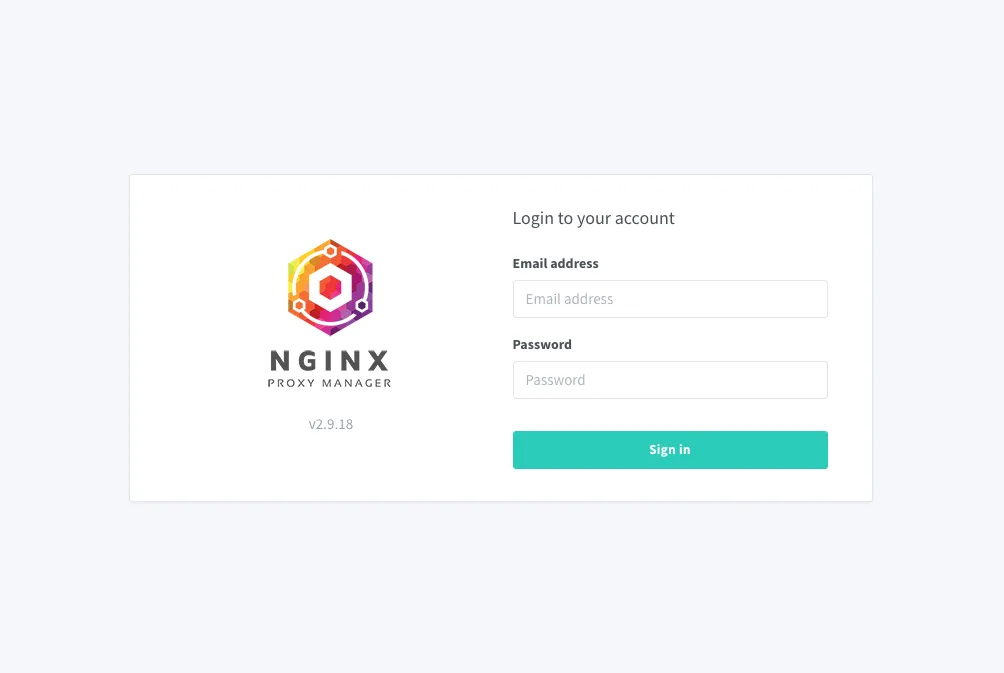
Nginx Proxy Manager (NPM) is a web interface for an Nginx-based reverse proxy. It lets you publish services on your own domains and issue Let’s Encrypt certificates in a few clicks, with no manual configuration editing. It is the simplest way to give proper HTTPS addresses to applications running in Docker.
What you need
- a VPS with Docker and Docker Compose — see the installation guide;
- ports 80 and 443 free;
- domains with A records pointing to the server’s IP address.
Installation
mkdir -p ~/npm && cd ~/npmCreate docker-compose.yml:
services:
  npm:
    image: jc21/nginx-proxy-manager:latest
    container_name: npm
    restart: unless-stopped
    ports:
      - "80:80"
      - "443:443"
      - "81:81"
    volumes:
      - ./data:/data
      - ./letsencrypt:/etc/letsencrypt
    networks:
      - proxy

networks:
  proxy:
    name: proxy
Start the container:
docker compose up -dPorts 80 and 443 carry site traffic, port 81 is the admin panel. The data and letsencrypt directories hold the settings and certificates: those are what you back up.
First login
Open http://your-server-ip:81. Current versions ask you to create an administrator account on first launch. Older versions used the default credentials admin@example.com and changeme, which the panel made you change right after logging in.
Adding a proxy host
Say an application runs on the server on port 8080 and you want it at app.example.com.
- Open Hosts → Proxy Hosts and click Add Proxy Host.
- On the Details tab fill in:
- Domain Names —
app.example.com; - Scheme —
http(the protocol the application itself speaks); - Forward Hostname / IP — the application’s address;
- Forward Port —
8080.
- Domain Names —
- Enable Block Common Exploits. If the application uses WebSocket, enable Websockets Support.
- Go to the SSL tab, choose Request a new SSL Certificate, enable Force SSL and HTTP/2 Support, and accept the Let’s Encrypt terms.
- Click Save.
Within a few seconds the application is available at https://app.example.com.
What to put in Forward Hostname
This is the most common source of mistakes.
- The application runs in Docker on the same server. Attach its container to the
proxynetwork and enter the container name. No port needs to be published to the outside:
services:
  app:
    image: nginx:alpine
    container_name: app
    networks:
      - proxy

networks:
  proxy:
    external: true
In NPM enter app and the port the application listens on inside the container.
- The application is installed directly on the server.
127.0.0.1will not work: inside the container it points to the NPM container itself. Use the server’s address on the Docker network (usually172.17.0.1) or its public address. - The application is on another server. Enter its IP address and make sure the port is reachable from the NPM server.
Wildcard certificate
A certificate for all subdomains is issued with DNS validation. Open SSL Certificates → Add SSL Certificate → Let’s Encrypt, enter *.example.com and example.com, enable Use a DNS Challenge, pick your DNS provider and paste the API token. The finished certificate can then be selected in any proxy host’s settings.
Restricting access
Access lists put a service behind a password or allow only certain addresses.
- Open Access Lists → Add Access List.
- Add a login and password on the Authorization tab and the allowed IP addresses on the Access tab.
- In the proxy host settings select the list in the Access List field.
This is a convenient way to protect internal dashboards that have no authentication of their own.
Other features
- Redirection Hosts — redirect one domain to another, for example from
wwwto the main address. - Streams — forward TCP and UDP ports for services that do not speak HTTP.
- Custom locations — different applications on different paths of one domain.
- Advanced — arbitrary Nginx directives for a specific host.
Securing the admin panel
By default the panel on port 81 is open to the whole internet and unencrypted. Fix that right after setup.
The simplest option is to publish the port on the loopback address only:
- "127.0.0.1:81:81"and reach the panel through an SSH tunnel:
ssh -L 8081:127.0.0.1:81 root@203.0.113.10While the connection is open the panel is available at http://localhost:8081. Another option is to create a proxy host for the panel itself (npm, port 81) with an SSL certificate and an access list, and then stop publishing port 81.
Updating
cd ~/npm
docker compose pull
docker compose up -d
Before updating, back up the data and letsencrypt directories and read the release notes: some versions change how the DNS plugins for issuing certificates work.
Common problems
- 502 Bad Gateway — NPM cannot reach the application: check the address, the port and the shared Docker network.
- No certificate is issued — the domain does not point to the server, or a firewall blocks port 80.
- Redirect loop — the application itself redirects to HTTPS while Scheme is set to
http. Switch the scheme tohttpsor turn off the redirect in the application. - Port 80 is in use — another web server is already running:
sudo ss -tlnp | grep ':80 '.
NPM or manual configuration
Nginx Proxy Manager is convenient when you have a handful of services and want to manage them through an interface. If the configuration should live in Git next to the services, look at Traefik; if you want full control over Nginx, see the manual virtual host setup.