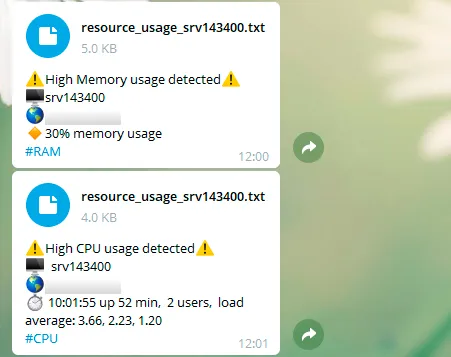

Telegram Notifications from MikroTik RouterOS

The router is the first to know about network problems: the provider’s link went down, equipment rebooted, an unknown device connected. The built-in RouterOS scripting language can send messages about such events straight to Telegram — with no extra servers or software.
How it works
Telegram has an HTTP interface for bots: call a special URL and the bot sends a message to a chat. RouterOS makes HTTP requests with /tool fetch. We wrap sending in a function and call it from the scheduler, Netwatch and elsewhere.
Step 1. Create a bot
- Open a chat with @BotFather in Telegram and send
/newbot. - Set the bot’s name and username and save the token, which looks like
123456789:AAH.... - Send your bot any message.
- Open
https://api.telegram.org/bot<TOKEN>/getUpdatesin a browser and find"chat":{"id":123456789in the response — that is the chat ID.
To notify a group, add the bot to the group and use its ID — it starts with a minus sign.
Step 2. Test sending
Run this in the router terminal with your own values:
/tool fetch url="https://api.telegram.org/bot123456789:AAH.../sendMessage" http-method=post http-data="chat_id=123456789&text=Test from MikroTik" output=noneA message should arrive in the chat. If it does not, check that DNS works on the router and it has internet access:
/ping api.telegram.org count=3Step 3. Create the send function
To avoid repeating the token in every script, move sending into a function. Create a script:
/system script add name=tg-init policy=read,write,test,policy source={
:global tgSend do={
    :local token "123456789:AAH..."
    :local chat "123456789"
    :local msg ("[" . [/system identity get name] . "] " . $text)
    :do {
        /tool fetch url=("https://api.telegram.org/bot" . $token . "/sendMessage") \
            http-method=post http-data=("chat_id=" . $chat . "&text=" . $msg) output=none
    } on-error={ :log warning "Telegram: message not sent" }
}
}
The function prefixes every message with the router’s name — handy when you have several devices. The on-error block keeps the script from stopping if the internet is unavailable at that moment.
Global functions live in memory and are lost on reboot, so the script has to run at start-up:
/system scheduler add name=tg-init start-time=startup on-event="/system script run tg-init"Run it by hand now and test the function:
/system script run tg-init
:global tgSend; $tgSend text="Function works"
In any script, declare the function with :global tgSend before calling it.
Examples
The router rebooted
/system scheduler add name=tg-boot start-time=startup on-event={
    :delay 60s
    :global tgSend
    $tgSend text="Router started"
}
The pause gives the internet link and the send function time to come up. Schedules with start-time=startup run in name order, so tg-boot fires after tg-init.
A host went down
Netwatch monitors an address and runs scripts when its state changes:
/tool netwatch add host=192.168.88.10 interval=30s timeout=3s \
    down-script={:global tgSend; $tgSend text="Server 192.168.88.10 is DOWN"} \
    up-script={:global tgSend; $tgSend text="Server 192.168.88.10 is UP"}
This is a convenient way to watch servers, cameras and access points on the local network.
Failover to a backup link
If you have two providers, monitor the main link through an external address. The “down” message leaves through the backup link:
/tool netwatch add host=1.1.1.1 interval=20s timeout=2s \
    down-script={:global tgSend; $tgSend text="Main ISP is DOWN"} \
    up-script={:global tgSend; $tgSend text="Main ISP is UP"}
To make sure the check goes through the main provider, add a dedicated route for that address via its gateway.
A new device on the network
The DHCP server script runs every time an address is leased:
/ip dhcp-server set [find] lease-script={
    :if ($leaseBound = "1") do={
        :global tgSend
        $tgSend text=("New device: " . $"lease-hostname" . " " . $leaseActIP . " " . $leaseActMAC)
    }
}
Messages arrive on every connection, including known devices. To be notified only about new ones, create static DHCP leases for known devices and check in the script that the lease is dynamic.
The public IP address changed
/system script add name=tg-wanip source={
    :global tgSend
    :global lastWanIp
    :local ip [/ip address get [find interface=ether1] address]
    :if ($ip != $lastWanIp) do={
        :set lastWanIp $ip
        $tgSend text=("WAN IP changed: " . $ip)
    }
}
/system scheduler add name=tg-wanip interval=5m on-event="/system script run tg-wanip"
High CPU load
/system script add name=tg-cpu source={
    :global tgSend
    :local load [/system resource get cpu-load]
    :if ($load > 85) do={ $tgSend text=("CPU load " . $load . "%") }
}
/system scheduler add name=tg-cpu interval=5m on-event="/system script run tg-cpu"
Administrator login
The simplest approach is to scan the log for login entries once a minute:
/system script add name=tg-login source={
    :global tgSend
    :global lastLoginTime
    :foreach i in=[/log find where topics~"account" and message~"logged in"] do={
        :local t [/log get $i time]
        :if ($t != $lastLoginTime) do={
            :set lastLoginTime $t
            $tgSend text=[/log get $i message]
        }
    }
}
/system scheduler add name=tg-login interval=1m on-event="/system script run tg-login"
The script is simplified: on its first run it reports recent logins from the log, and after that only new ones.
Script and scheduler permissions
If a script does not run from the scheduler, check the policies: both the schedule and the script need the read, write, test and policy permissions. Execution errors show up in the log:
/log print where topics~"script"Security
- The bot token is stored in the router configuration in clear text. It ends up in backups and in the output of
/export— do not publish them. /tool fetchdoes not verify the server certificate by default. To enable verification, addcheck-certificate=yesand make sure the router has root certificates.- Use a separate bot for notifications and do not give it extra rights in groups.
- Restrict access to the router itself — the basic rules are in the MikroTik firewall guide.
What else you can monitor
The same approach works for VPN client connections, firewall rule hits, finished backups or RouterOS updates. Notifications from Linux servers are set up in a similar way: SSH logins and high load.
If the router runs as a cloud CHR, the same scripts work unchanged.