
How to Change the RDP Port on Windows Server and Windows 10/11
The default Remote Desktop port 3389 is scanned constantly by password-guessing bots. Changing the port does not replace a strong password, but it sharply cuts the number of automated attacks on a Windows VPS or dedicated server.
The quick way: PowerShell
Run PowerShell as administrator. The examples use port 3390 — substitute your own from the 1025–65535 range.
Open the new port in the firewall:
New-NetFirewallRule -DisplayName "RDP 3390 TCP" -Direction Inbound -Protocol TCP -LocalPort 3390 -Action Allow
New-NetFirewallRule -DisplayName "RDP 3390 UDP" -Direction Inbound -Protocol UDP -LocalPort 3390 -Action Allow
Change the port in the registry:
Set-ItemProperty -Path "HKLM:\SYSTEM\CurrentControlSet\Control\Terminal Server\WinStations\RDP-Tcp" -Name PortNumber -Value 3390Restart the Remote Desktop service:
Restart-Service TermService -ForceThe current session drops. Reconnect on the new port.
Using the Registry Editor
- Press
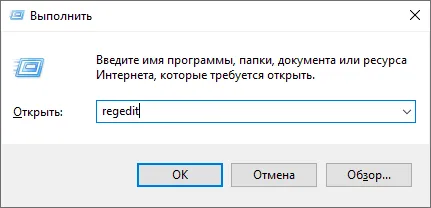
Win + R, typeregeditand press Enter.
- Go to the key:
HKEY_LOCAL_MACHINE\SYSTEM\CurrentControlSet\Control\Terminal Server\WinStations\RDP-Tcp- Double-click the PortNumber value.
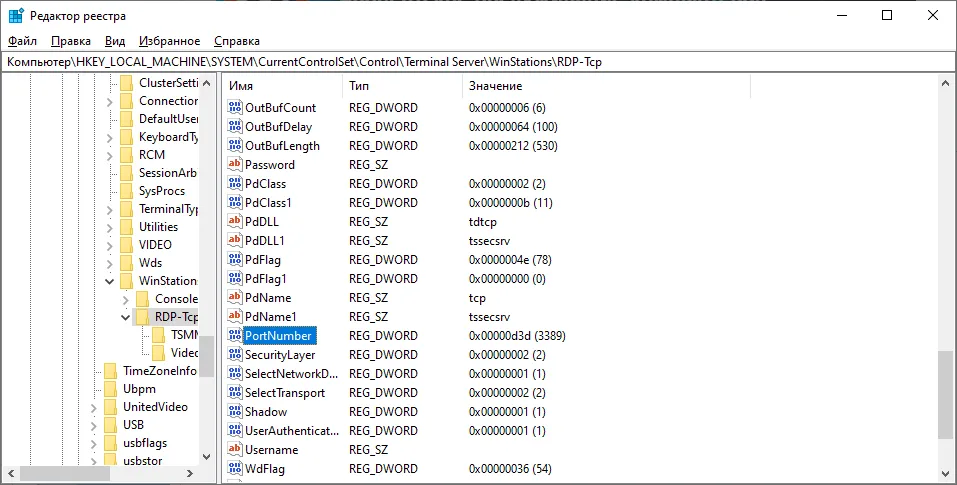
- Switch the base to Decimal and enter the new port number.
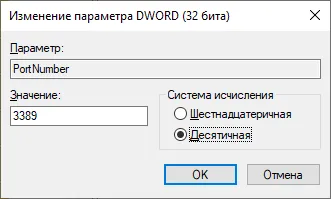
- Add a rule for the new port: Windows Defender Firewall → Advanced settings → Inbound Rules → New Rule → Port.
- Reboot the server or restart the “Remote Desktop Services” service.
Connecting on the new port
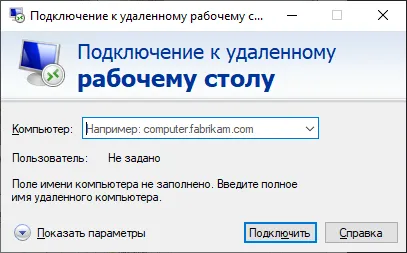
In the Remote Desktop Connection client, put the port after the address, separated by a colon:
203.0.113.10:3390Or from the command line:
mstsc /v:203.0.113.10:3390Verification
Confirm the service listens on the new port:
Get-NetTCPConnection -LocalPort 3390 -State ListenCheck from another computer that the port is reachable:
Test-NetConnection 203.0.113.10 -Port 3390Once the connection on the new port works, disable the old firewall rules for port 3389.
What else to do
- Make sure Network Level Authentication (NLA) is enabled: System → Remote Desktop → Advanced settings.
- If your address is static, restrict the firewall rule to the IP addresses allowed to connect.
- Rename the Administrator account or create a separate one with a strong password.
- Configure account lockout after several failed logins in the local security policy.