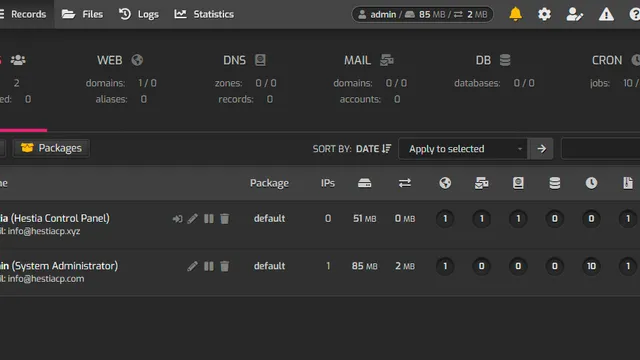

Setting Up SPF, DKIM and DMARC in HestiaCP
Mail services accept messages only from senders who can prove who they are. Without SPF, DKIM and DMARC records, mail from your domain lands in spam or is rejected outright — Gmail, Outlook and other large providers require them from every sender. In HestiaCP everything is set up in a few minutes.
What each record does
- SPF lists the servers allowed to send mail on behalf of the domain.
- DKIM adds a digital signature to every message. The recipient verifies it with a public key published in DNS.
- DMARC tells the recipient what to do with messages that fail the checks and where to send reports.
- PTR is the reverse DNS record: the server’s IP address must resolve to its name.
Reliable delivery needs all four.
Step 1. Enable DKIM for the domain
In the panel. Log in as the user who owns the domain, open the Mail section, hover over the domain and click Edit Mail Domain. Tick DKIM Support and save. For a new domain the option is enabled at creation.
From the shell:
v-add-mail-domain-dkim user example.comThe panel creates a key pair: the private key stays on the server, the public one has to be published in DNS.
Step 2. Get the DNS records
In the mail domain list click the DNS Records icon next to the domain. The panel shows ready-made records for SPF, DKIM and DMARC.
From the shell, the public key is available with:
v-list-mail-domain-dkim-dns user example.comStep 3. Add the records to DNS
What comes next depends on where the domain’s DNS zone is hosted.
HestiaCP hosts the DNS
If the domain uses your panel’s name servers, the records are created automatically when DKIM is enabled. Check them under DNS.
DNS at the registrar or a third-party provider
Add the records by hand in the DNS control panel.
| Type | Name | Value |
|---|---|---|
| TXT | @ |
v=spf1 a mx ip4:203.0.113.10 -all |
| TXT | mail._domainkey |
v=DKIM1; k=rsa; p=MIIBIjANBg... |
| TXT | _domainkey |
t=y; o=~; |
| TXT | _dmarc |
v=DMARC1; p=none; rua=mailto:postmaster@example.com |
Replace 203.0.113.10 with your server’s IP address and copy the DKIM value from the panel in full.
A few important details:
- A domain may have only one SPF record. If mail is also sent through a third-party mailing service, add it to the existing record with
include:rather than creating a second one. - A long DKIM key. Some DNS panels do not accept strings longer than 255 characters. In that case split the value into quoted parts as your provider’s interface suggests.
-alland~all. The strict-allrejects mail from unlisted servers. If you are not sure you have listed every mail source, start with the soft~all.
Step 4. Set the PTR record
The reverse record is not set in the domain’s DNS but on the side of the hosting provider that owns the IP address. For a UnixHost server it can be set in the service control panel or through a support request.
PTR must point to the mail server’s name — usually mail.example.com — and that name must resolve back to the same IP address. Check:
dig -x 203.0.113.10 +short
dig mail.example.com +short
Step 5. Verify the result
DNS changes take effect within minutes to hours. Check the records from the shell:
dig TXT example.com +short
dig TXT mail._domainkey.example.com +short
dig TXT _dmarc.example.com +short
Then send a message to the address provided by mail-tester.com: it shows a score and a detailed report on every check.
Another way is to send a message to your own Gmail mailbox and open Show original. The headers should contain:
SPF: PASS
DKIM: PASS
DMARC: PASS
Step 6. Tighten the DMARC policy
p=none only collects reports and blocks nothing. It exists so you can confirm that all legitimate mail passes the checks. After two or three weeks move to a stricter policy:
v=DMARC1; p=quarantine; rua=mailto:postmaster@example.comand once you are sure everything works, to p=reject. Only a strict policy protects your domain from sender spoofing.
Common problems
- DKIM: FAIL. The DNS record does not match the key on the server — most often because the value was truncated or has extra spaces. Copy the key again.
- SPF: SOFTFAIL or FAIL. The record does not list the IP address mail actually leaves from. Check which address the server uses for outgoing connections.
- Mail still lands in spam. Check the PTR record and whether the IP address is on blocklists. A new address needs time to build a reputation: start with small volumes.
- No records in the panel. Make sure mail support and DKIM are enabled for the domain.
What about VestaCP
VestaCP, the panel this guide was originally written for, is no longer developed and receives no security updates. Its commands have the same names, but for new servers use HestiaCP, its direct successor. Updating the mail server itself is covered in the Exim guide.