
How to Update Portainer to the Latest Version

Portainer CE does not update itself: you install a new version manually by replacing the container. Settings, users and stacks live in a separate volume, so nothing is lost when the update is done properly.
Before you update
- Make a backup. In the Portainer interface open Settings → Back up Portainer and download the archive. An update changes the database format, and you cannot roll back to the old version without a copy.
- Find out how Portainer was started. This command shows the volume name and mount points:
docker inspect portainer --format '{{range .Mounts}}{{.Source}} -> {{.Destination}}{{"\n"}}{{end}}'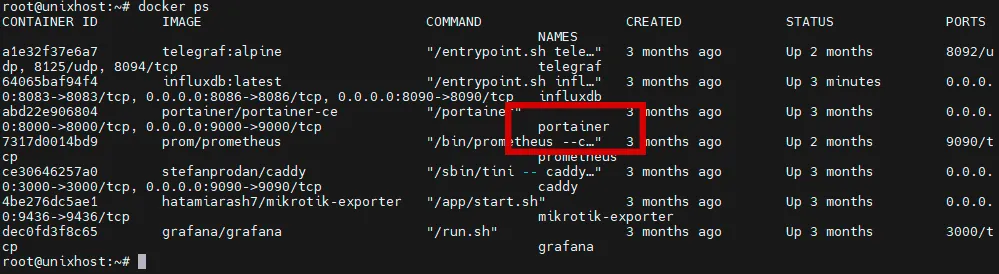
- Pick a branch. Portainer has two tags:
lts— the long-term support release, recommended for production servers;sts— newer features with a short support window. Thelatesttag points to LTS.
Updating with docker run
Stop and remove the old container. The data volume stays in place:
docker stop portainer
docker rm portainer
Pull the new image:
docker pull portainer/portainer-ce:ltsStart the container with the same volume:
docker run -d \
  -p 8000:8000 -p 9443:9443 \
  --name portainer \
  --restart=always \
  -v /var/run/docker.sock:/var/run/docker.sock \
  -v portainer_data:/data \
  portainer/portainer-ce:lts
If you used port 9000 (HTTP) or a different volume name before, put your own values in the command. What matters is that -v ...:/data points to the existing volume.
Updating with Docker Compose
If Portainer is described in docker-compose.yml, two commands in the directory with that file are enough:
docker compose pull
docker compose up -d
Compose recreates the container with the new image.
Verification
Open https://your-server-ip:9443 and log in with your existing credentials. The version number is shown in the bottom-left corner of the interface. On the first start after an update Portainer may spend a few seconds migrating the database.
If something goes wrong, read the container log:
docker logs portainerUpdating the Portainer Agent
If other servers are connected to Portainer through the agent, update it on each of them to the same version:
docker stop portainer_agent
docker rm portainer_agent
docker pull portainer/agent:lts
docker run -d \
  -p 9001:9001 \
  --name portainer_agent \
  --restart=always \
  -v /var/run/docker.sock:/var/run/docker.sock \
  -v /var/lib/docker/volumes:/var/lib/docker/volumes \
  portainer/agent:lts
Cleaning up old images
The previous image stays on disk after the update. Remove unused images:
docker image pruneCan it be automated
Other containers are convenient to update with Watchtower, but Portainer itself is better updated by hand: the database format changes between versions, and the backup should be a deliberate step.
If Portainer is not installed yet, start with the guide on installing Docker and Portainer.