
How to Install Docker on Ubuntu 22.04, 24.04 and 26.04
Docker packages an application together with its dependencies into a container that runs the same way on any server. Below is how to install the current version on Ubuntu from Docker’s official repository, plus the settings worth applying right away.
Why not the package from the Ubuntu repository
Ubuntu has its own docker.io package, but it lags behind. Docker’s official repository provides a current engine and the Compose and Buildx plugins.
Step 1. Remove old packages
sudo apt remove docker.io docker-doc docker-compose podman-docker containerd runcIf the packages are not installed, the command simply says so.
Step 2. Add the Docker repository
sudo apt update
sudo apt install -y ca-certificates curl
sudo install -m 0755 -d /etc/apt/keyrings
sudo curl -fsSL https://download.docker.com/linux/ubuntu/gpg -o /etc/apt/keyrings/docker.asc
sudo chmod a+r /etc/apt/keyrings/docker.asc
echo "deb [arch=$(dpkg --print-architecture) signed-by=/etc/apt/keyrings/docker.asc] https://download.docker.com/linux/ubuntu $(. /etc/os-release && echo "$VERSION_CODENAME") stable" | sudo tee /etc/apt/sources.list.d/docker.list > /dev/nullStep 3. Install Docker
sudo apt update
sudo apt install -y docker-ce docker-ce-cli containerd.io docker-buildx-plugin docker-compose-plugin
The service starts automatically and is enabled at boot. Check it:
sudo systemctl status docker
sudo docker run --rm hello-world
Step 4. Run without sudo
sudo usermod -aG docker $USERLog out and back in. Remember: a member of the docker group effectively has root access.
Step 5. Limit log size
By default container logs grow without limit and eventually fill the disk. Create /etc/docker/daemon.json:
{
  "log-driver": "json-file",
  "log-opts": {
    "max-size": "10m",
    "max-file": "3"
  }
}
Restart the service:
sudo systemctl restart dockerThe setting applies to containers created after the restart.
Essential commands
| Command | What it does |
|---|---|
docker ps |
list running containers (-a for all) |
docker images |
list downloaded images |
docker run -d --name web -p 8080:80 nginx |
start a container in the background |
docker logs -f web |
follow a container’s log |
docker exec -it web sh |
open a shell inside a container |
docker stop web / docker start web |
stop and start |
docker rm web |
remove a container |
docker compose up -d |
start the services from docker-compose.yml |
Docker and the firewall
Docker manages packet filter rules itself, so a port published with -p 8080:80 is reachable from the internet even if UFW does not allow it. To keep a service local, publish the port on the loopback address:
docker run -d -p 127.0.0.1:8080:80 nginxCleaning up disk space
See how much space Docker uses:
docker system dfRemove stopped containers, unused networks and untagged images:
docker system pruneWith -a, all images not used by a container are removed; with --volumes, unused volumes too. Be careful with volumes: that is where data lives.
Updating and removing
Docker updates together with the system:
sudo apt update && sudo apt upgradeFull removal including images, containers and volumes:
sudo apt purge docker-ce docker-ce-cli containerd.io docker-buildx-plugin docker-compose-plugin
sudo rm -rf /var/lib/docker /var/lib/containerd
Next steps
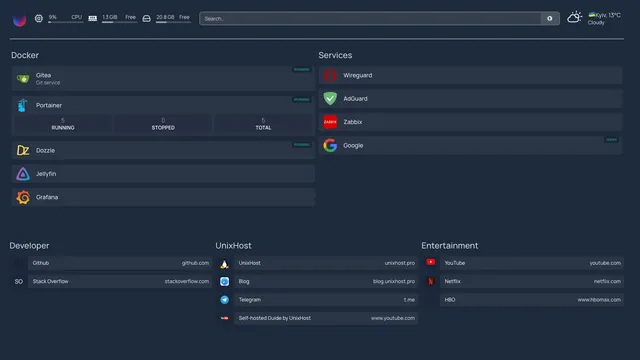
- Portainer — a web interface for managing containers.
- Dozzle — read logs in the browser.
- Watchtower — automatic container updates.